
Sell and dispense at the pharmacy counter
Available to
Pharmacists and pharmacy assistants working at the counter.At the pharmacy counter a medicine is sold and dispensed in one step. Paying for it records a dispensing event that points at the sale, the patient, the batch and the stock movement, so nobody fills in a separate dispensing form for each patient.
Make a sale
- Open Pharmacy → Counter. The card shows the till, its session and what it has sold today. Select Continue Selling, or Open Register when no session is open.
- Select Patient, search for the patient and choose them. The list holds patients only. A prescription medicine cannot be paid for without one.
- Find the medicine and select it to add it to the sale. See Find a medicine at the counter.
- Look at the line. The till has chosen the batch for you: the earliest expiry that may be sold. A message gives the batch and its expiry, and tells you when it skipped a recalled or expired batch.
- For a medicine that needs a prescription, select its line, then Link Rx, and choose the patient's prescription authorisation. The button then reads Change Rx.
- Select Payment. For any prescription medicine, or whenever a safety alert is open, the Pharmacist check opens first. See Run the pharmacist check and decide safety alerts.
- Choose the payment method and select Validate. Amount Paid confirms the sale. Select Print or Send Receipt, then Continue for the next sale.


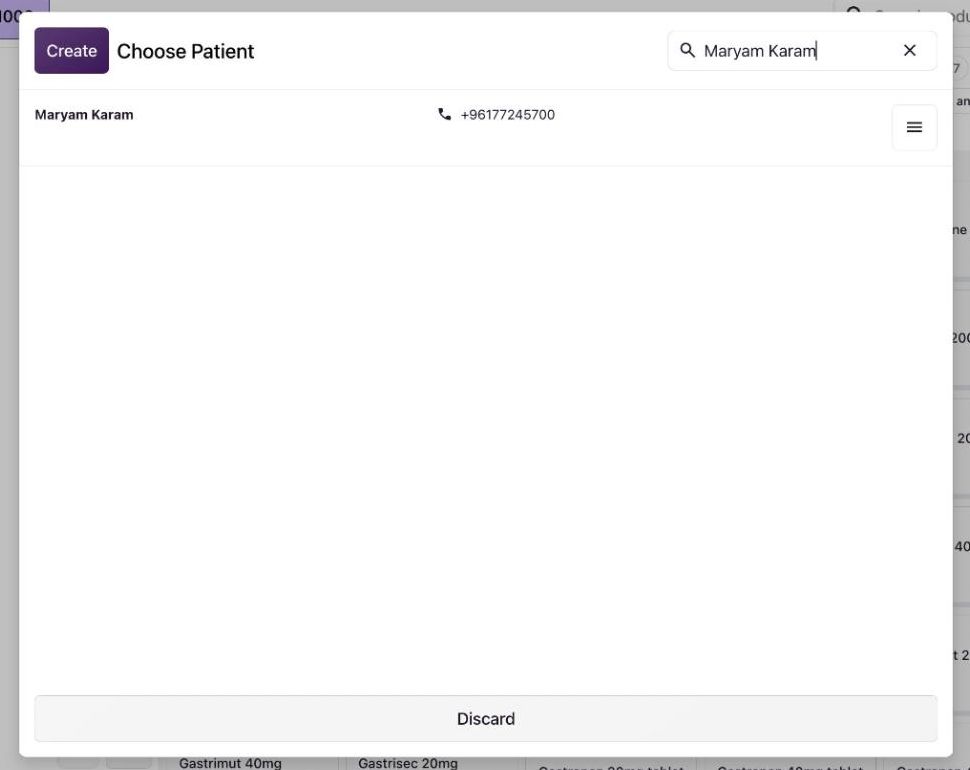

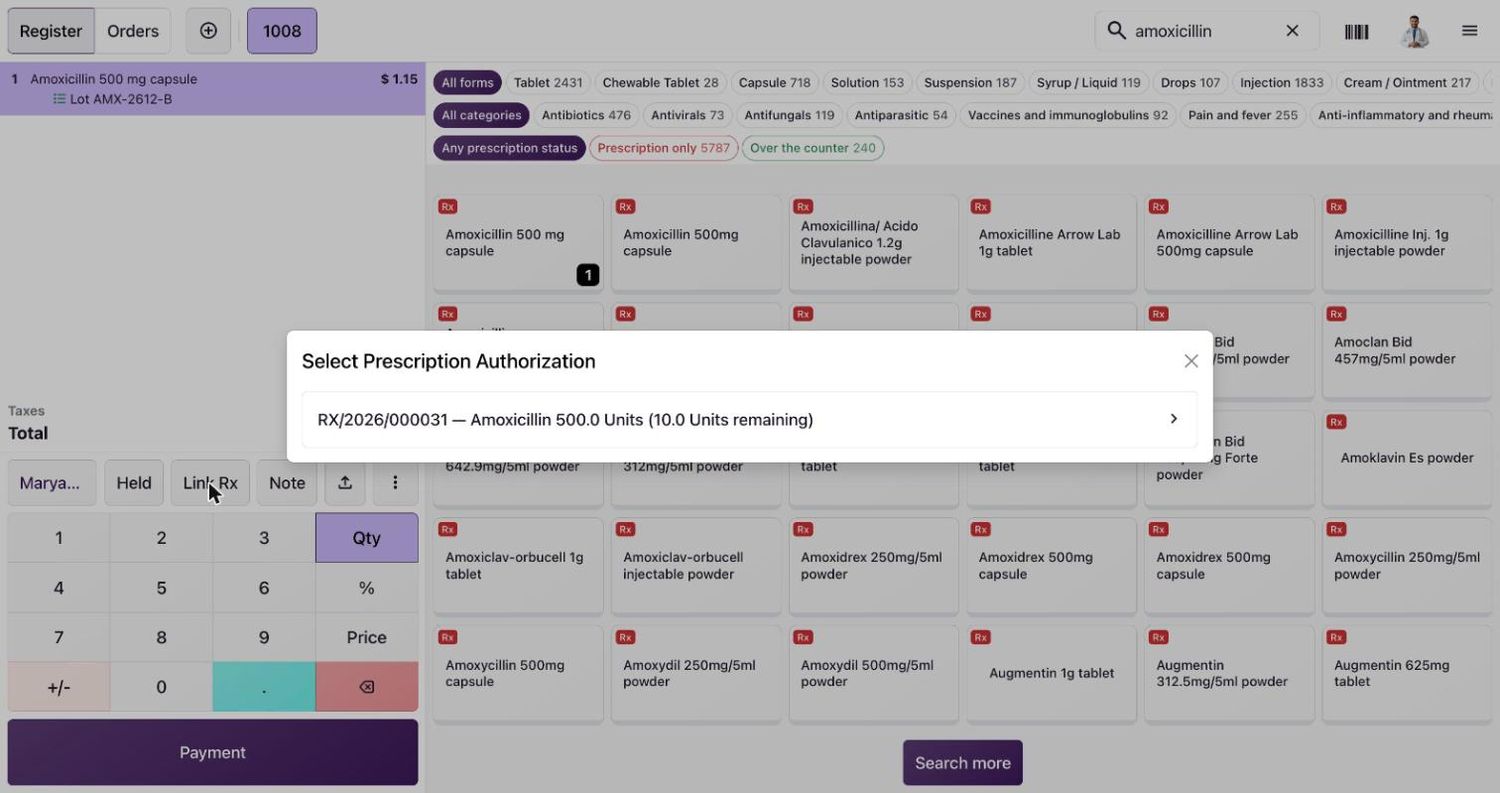

Every sale stays visible in the back office. Open Pharmacy → Counter Sales and select an order.

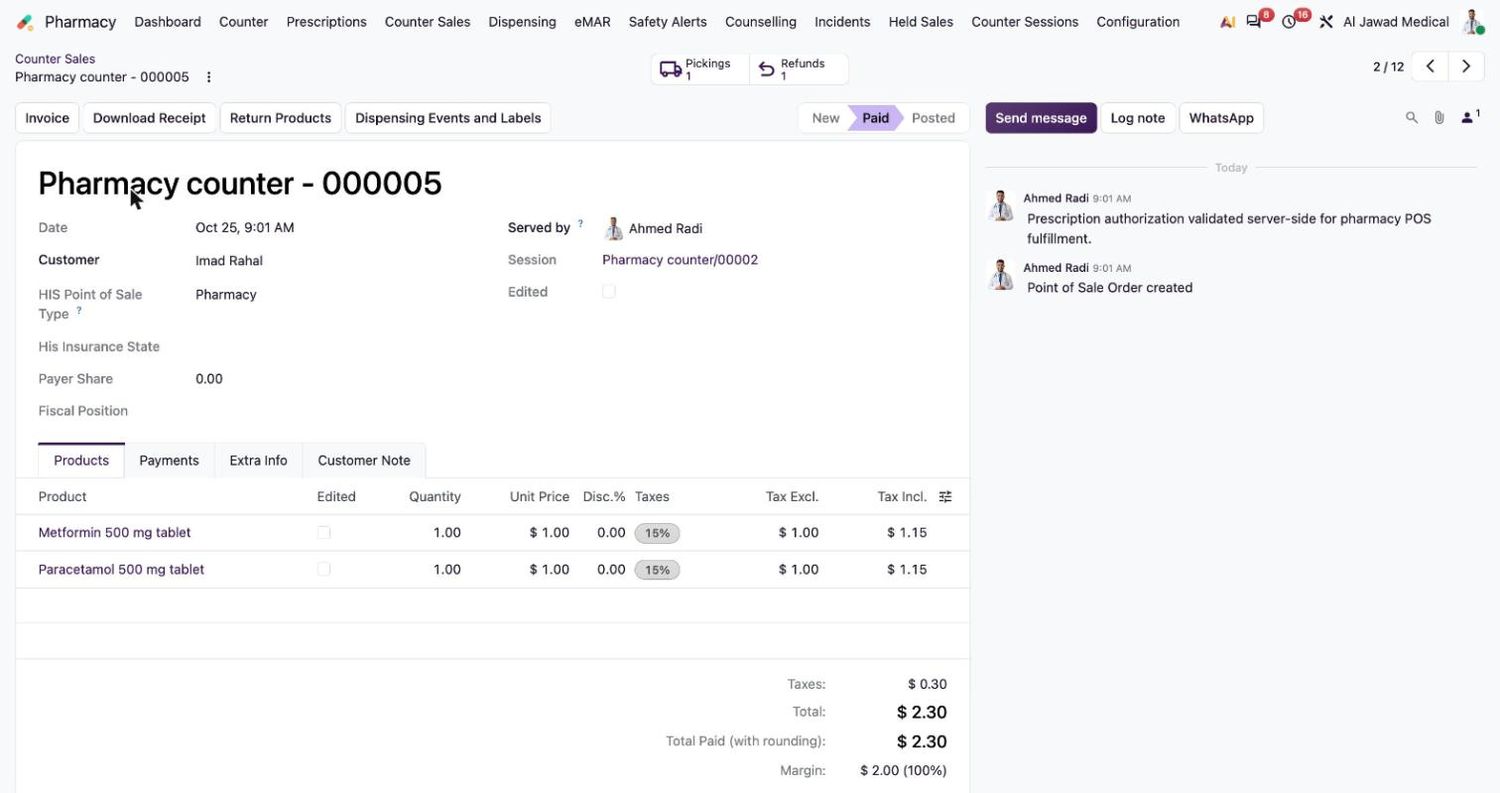
Dispensing Events and Labels lists one event for each medicine on the sale, with its prescription, patient, batch, quantity and state Posted. Open an event to print its label with Print Label. See Choose the label size for a medicine.

Good to know
- A pharmacy till sells only products whose Sold At is Pharmacy or Both, and refuses anything else at payment.
- Controlled and witness-required medicines are not sold at the till. Dispense them with the witnessed workflow. See Dispense a prescription.
- The server checks the prescription, the batch, the alerts and the insurance split again when the sale is paid. What is on the screen is a help, not the authority.
- Prescription authorisation and the pharmacist check need a live connection. If the connection is down, follow your approved downtime procedure.
- A till that updates stock only when the session closes has one stock transfer for the whole session. The dispensing events are linked to it at closing.
Related topics
Was this helpful?
Thank you. Your feedback is recorded.Thank you. Tell us what is missing so we can fix this guide.
Report an issue with this guide