
Record and sign a dental assessment
Available to
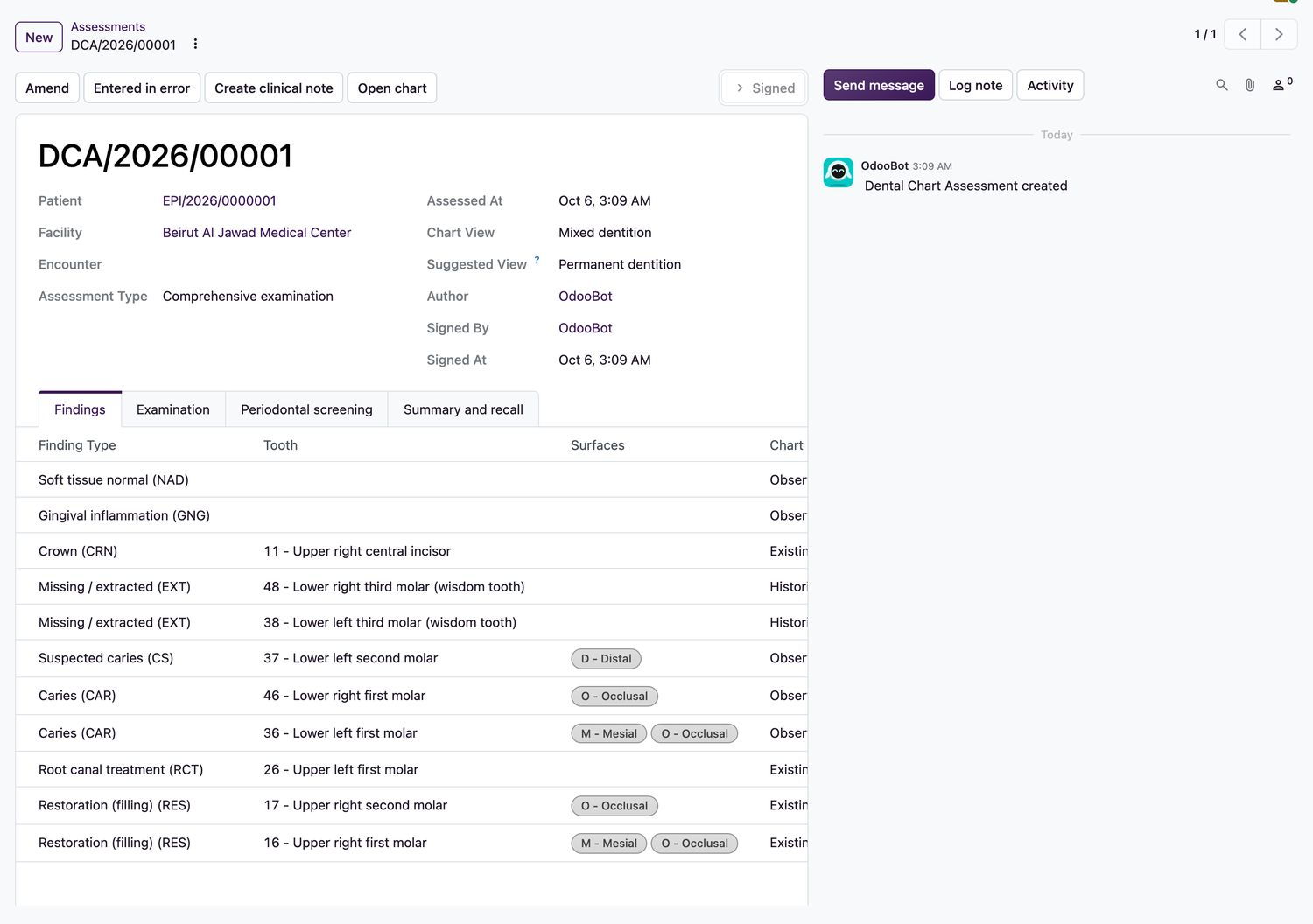
Dentists. Assistants can prepare a draft.An assessment is one dated examination: its findings, its notes and its recall. Findings are written into the assessment as drafts and become part of the chart when a dentist signs it.
Draft  →  Submitted  →  Signed  →  Amended
                       (or Entered in error, with a reason)
Record an assessment
- On the chart, select New assessment, or open Dental → Assessments and select New.
- Choose the Assessment Type, for example Comprehensive examination.
- Add findings by charting them on the odontogram, or add lines on the Findings tab.
- Fill in the Examination, Periodontal screening and Summary and recall tabs. A recall interval creates a recall.
- An assistant selects Submit. A dentist selects Sign.
Corrections
- A signed assessment, finding or procedure cannot be edited or deleted.
- To correct a signed assessment, select Amend. The amendment restates the whole assessment and the original is kept.
- To withdraw one that should not exist, select Entered in error and give a reason. The evidence stays.
- Select Create clinical note to put a summary into the patient's clinical notes.
Signing writes an audit event and adds an event to the patient's timeline.
Related topics
Was this helpful?
Thank you. Your feedback is recorded.Thank you. Tell us what is missing so we can fix this guide.
Report an issue with this guide