
Order work from a dental laboratory
Available to
Dentists and dental laboratory coordinators.A lab case is the order for something a dental laboratory makes: a crown, bridge, veneer, implant crown, denture, retainer or guard. It is separate from the clinical laboratory. The case follows the work from the prescription to the fitting, and the order to the laboratory is a purchase order in Purchase.
Draft  →  Sent to lab  →  In production  →  Received  →  Try-in  →  Fitted
                    (Remade or Cancelled, with a reason)
Prescribe the work
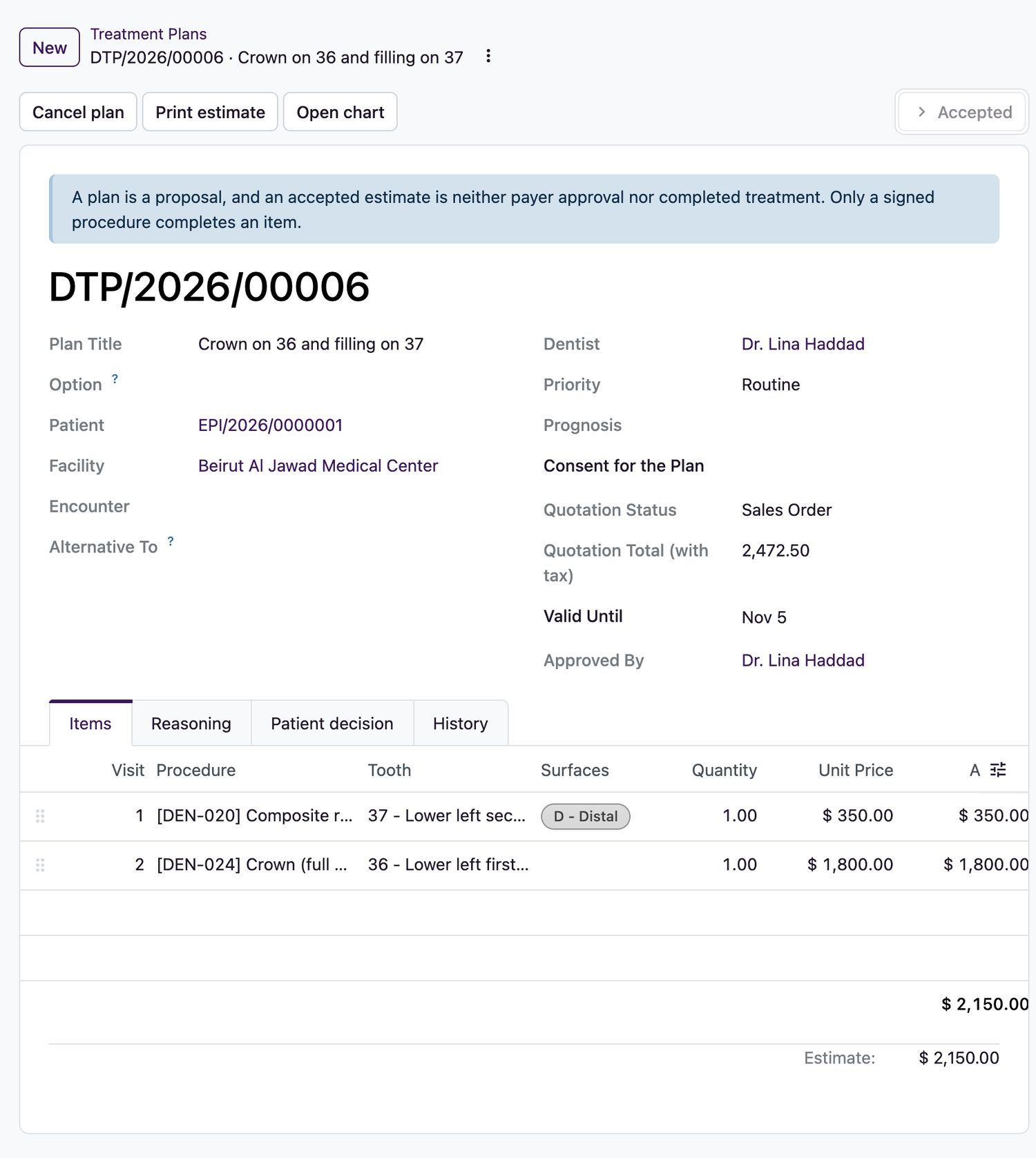
- Open the accepted plan and select Order from lab on the item. The button appears for procedures set up as lab work. You can also open Dental → Lab Cases and select New.
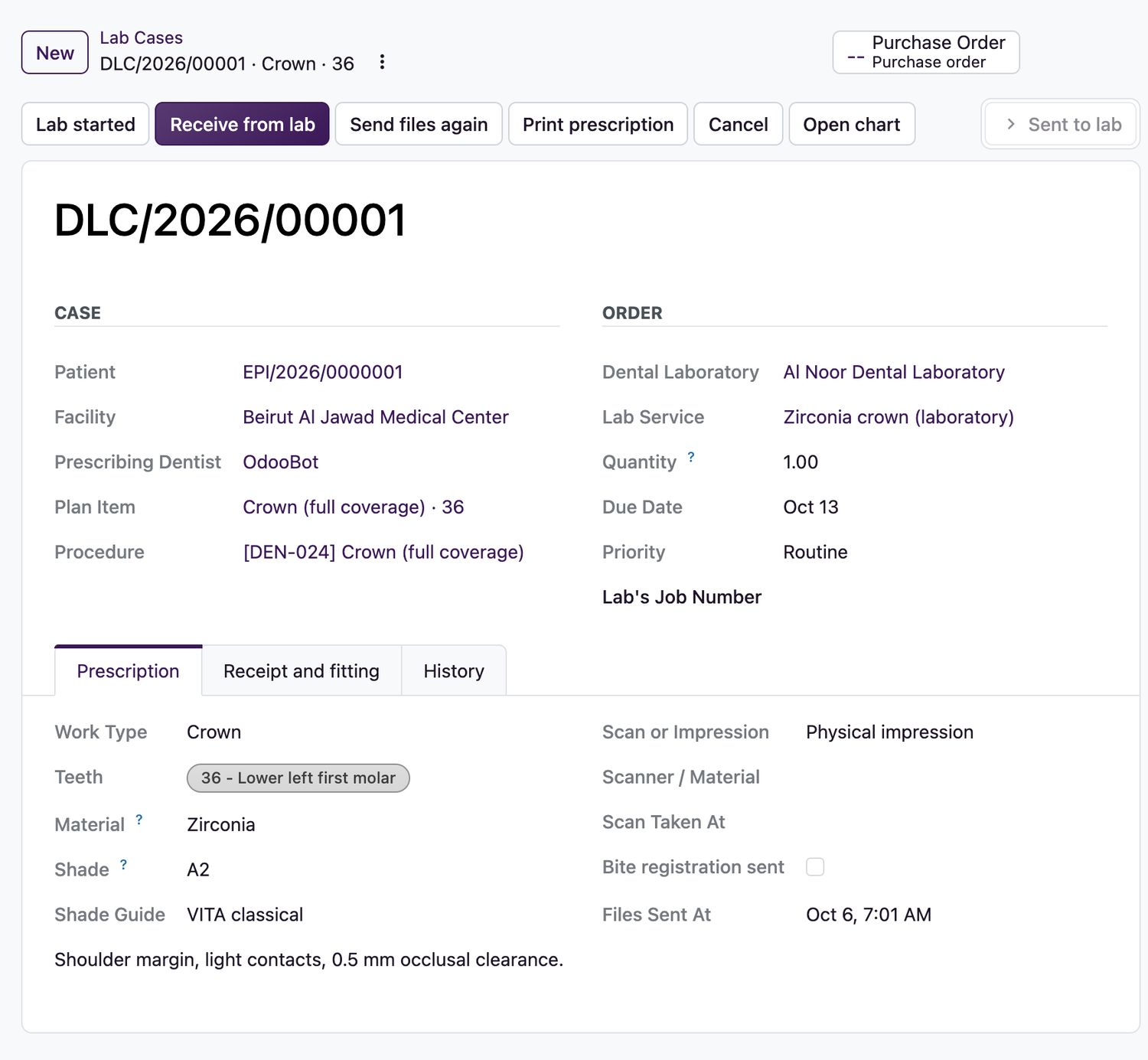
- Check the Dental Laboratory, Lab Service, Quantity and Due Date, and set the Priority.
- On the Prescription tab choose the Work Type, the Teeth, the Material, the Shade and the Shade Guide (VITA classical or VITA 3D-Master).
- Write the Instructions to the Lab: margins, contact points and occlusion. Never write the patient's name or number here, because it goes to an outside company.
- Choose Scan or Impression and attach the STL or PLY files. A case sent with an intra-oral scan needs its files.
- Tick Bite registration sent if you are sending one.
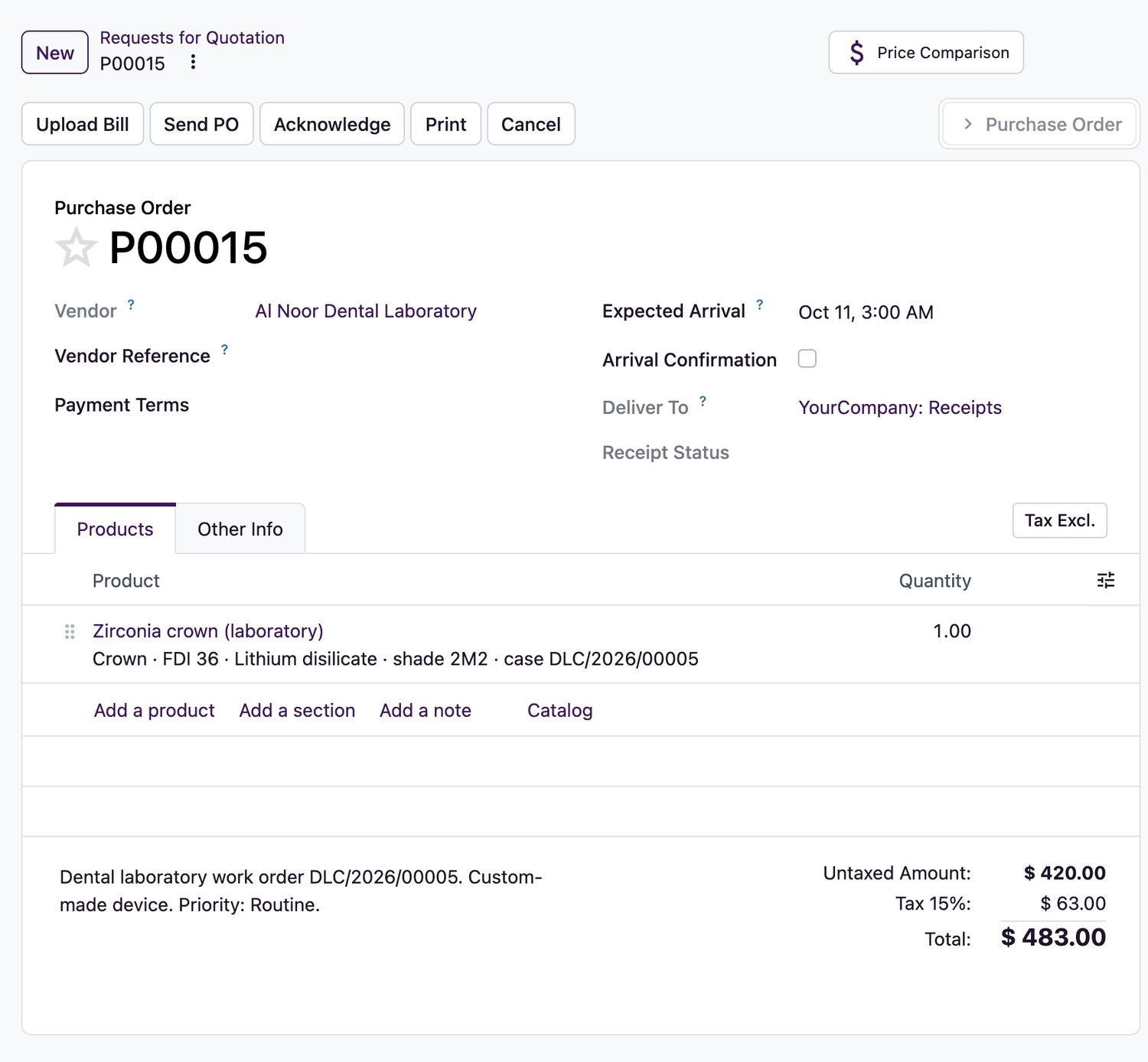
Select Send to lab. The system creates a purchase order to the laboratory, at the price on its vendor price list, and emails the prescription and the files you attached. The prescription is then locked. The purchase order is confirmed, or kept as a request for quotation for purchasing to confirm, according to the facility setting.
Receive the work and book the fitting
- When the laboratory confirms it has started, select Lab started. This step is optional.
- If you need to resend the files, select Send files again while the case is at the laboratory.
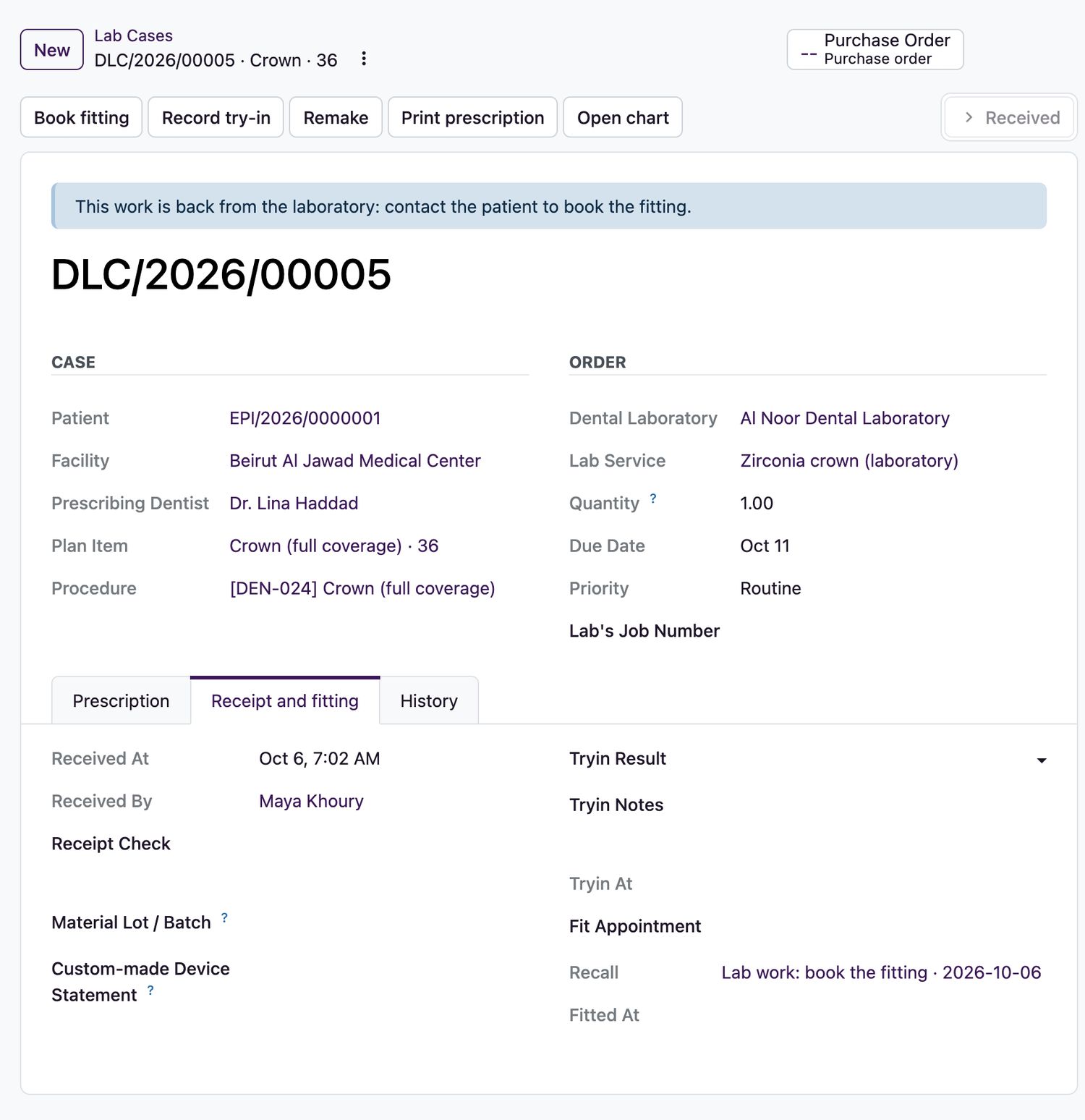
- When the work arrives, select Receive from lab. The receipt is recorded on the purchase order, so the laboratory's bill can be matched in Purchase.
- Receiving starts the call to the patient: a recall is due today (Lab work: book the fitting) and a task goes to the facility's fitting booking contact.
- Select Book fitting. A prefilled appointment opens, chair allocation included. Creating it links it to the case and the recall.
Case states
| Case state | Meaning |
|---|---|
Draft | Being prescribed. Everything can still be changed. |
Sent to lab | The purchase order exists and the prescription is locked. |
In production | The laboratory has started, or the work was sent back for adjustment. |
Received | The work is back and the fitting is to be booked. |
Try-in | The try-in was accepted and the work is ready to fit. |
Fitted | The work is in the mouth. The follow-up is closed. |
Remade | The work was sent for a remake. The old case stays as history. |
Cancelled | Cancelled with a reason. The purchase order is cancelled. |
Try-in and fitting
- At the try-in, select Record try-in and choose the Tryin Result: accepted, back to the lab for adjustment, or remake.
- For a remake, select Remake and enter the reason. The old case stays as history and a new draft is created.
- To finish, sign the fitting procedure on the plan item, or select Mark fitted. The case is marked fitted and the follow-up closes.
Control
- Overdue cases are flagged and a reminder is raised once a day.
- Lab cases appear on the chart's Needs attention list, and the Lab Cases menu opens a Kanban by status.
- A dental laboratory coordinator orders and receives. Reception can read cases, to call patients, but cannot change them.
- To cancel at the laboratory, select Cancel. The purchase order is cancelled. After receipt, use a remake.

Related topics
Was this helpful?
Thank you. Your feedback is recorded.Thank you. Tell us what is missing so we can fix this guide.
Report an issue with this guide