
Run a telemedicine session
Available to
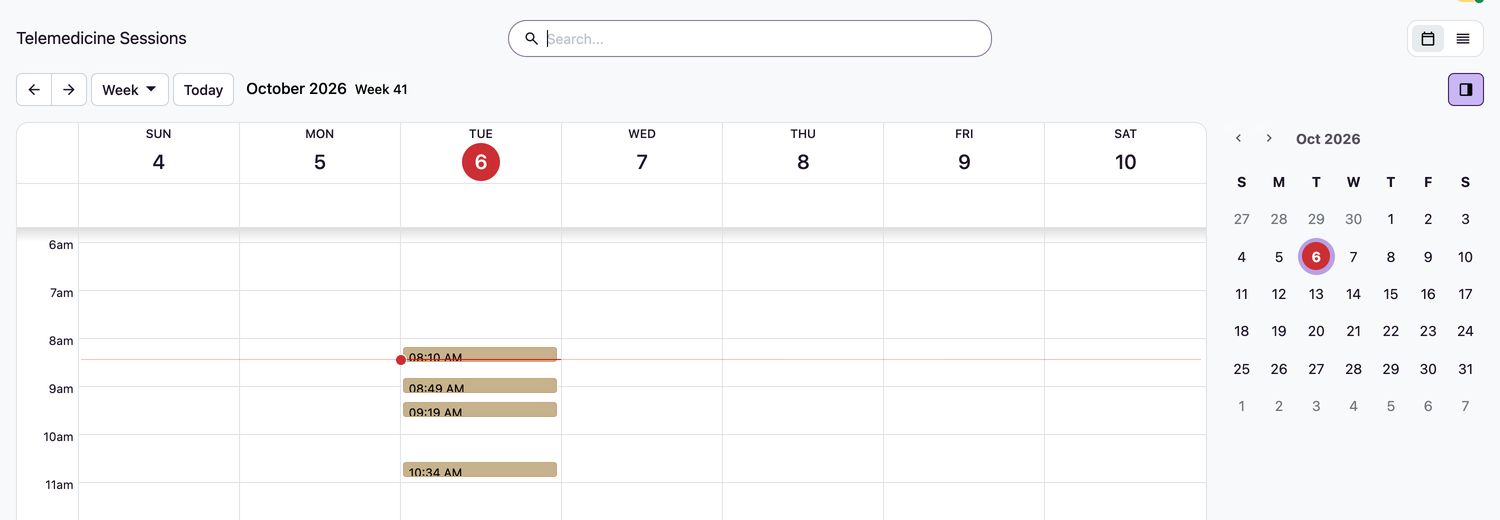
Clinicians and registration officers.A telemedicine session is a video consultation booked against a patient and a clinician. Ventrecs books it, checks consent and identity, links it to a virtual encounter and records the outcome. The video itself runs on the video provider's own page.
Book and run a session
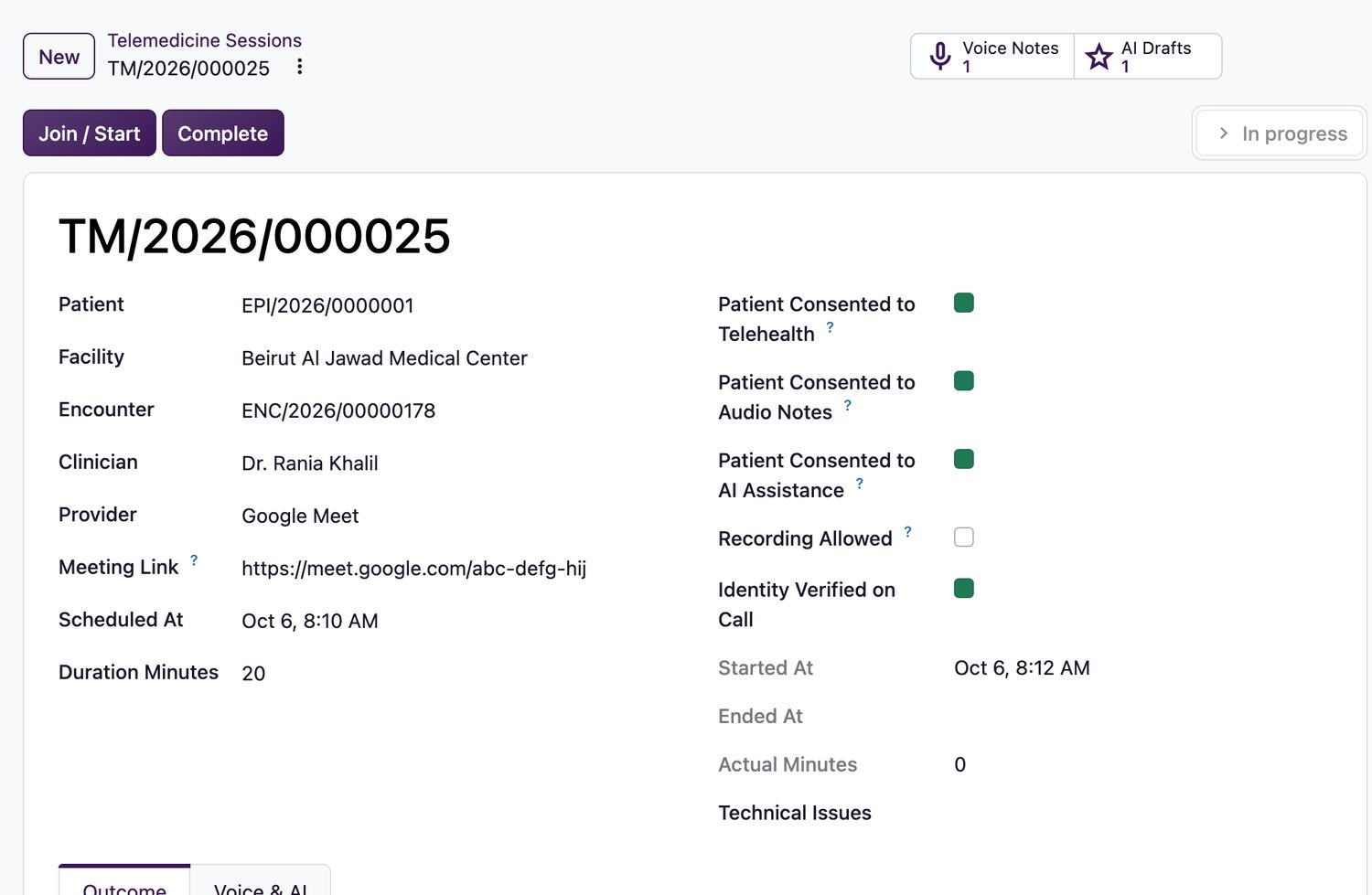
- Open Telemedicine → Sessions and select New. Choose the Patient, Facility, Clinician and Provider.
- Enter Scheduled At and Duration Minutes (5 to 240). Link an Encounter if the visit already exists. Save. The session is
Scheduled. - If the provider uses the clinician's own link (Google Meet, Zoom or Microsoft Teams), paste the Meeting Link. It must be an HTTPS link on the provider's allowed domains. With a generated room, the system creates the room for you.
- Select Email Invitation to send the invitation to the patient's registered email address.
- Before the call, tick Patient Consented to Telehealth. Tick Patient Consented to Audio Notes and Patient Consented to AI Assistance only if the patient agreed to each. Tick Recording Allowed only if the patient agreed to recording.
- At the time, the assigned clinician selects Join / Start. The state becomes
In progress. - During the call, confirm the patient's identity and tick Identity Verified on Call.
- After the call, record any Technical Issues, write the result on the Outcome tab, and select Complete.
If it does not go ahead
| Button | Use it when |
|---|---|
| Cancel | The session will not happen. Enter the Cancellation Reason. |
| No Show | The scheduled time has passed and the patient did not join. |
Rules
- Only the assigned clinician can start the session.
- The patient's consent to a remote consultation must be confirmed before the session starts, and a meeting link must be present if the provider needs one.
- Identity verification and an outcome note are required to complete.
- A session left in progress for more than four hours is closed automatically, and the meeting link is cleared when the session ends.
Related topics
Was this helpful?
Thank you. Your feedback is recorded.Thank you. Tell us what is missing so we can fix this guide.
Report an issue with this guide