
Create and follow a laboratory order
Available to
Clinicians create the request; laboratory users follow the order.A laboratory order starts as a clinical order for a laboratory test, then moves through collection, receipt, processing and results. The order list shows where every order is.
Clinician activates the laboratory request  →  Laboratory order created (Ordered)
        →  Specimen collected  →  Received  →  In Process  →  Results verified  →  Resulted
Create an order
- The clinician creates and activates a Laboratory clinical order. See Create and manage clinical orders.
- Open Laboratory → Laboratory Orders and select New.
- Choose the Service Request and select either one Test or one Panel (a panel such as Complete Blood Count is one order with several result lines). Set the Priority.
- Save. The order is
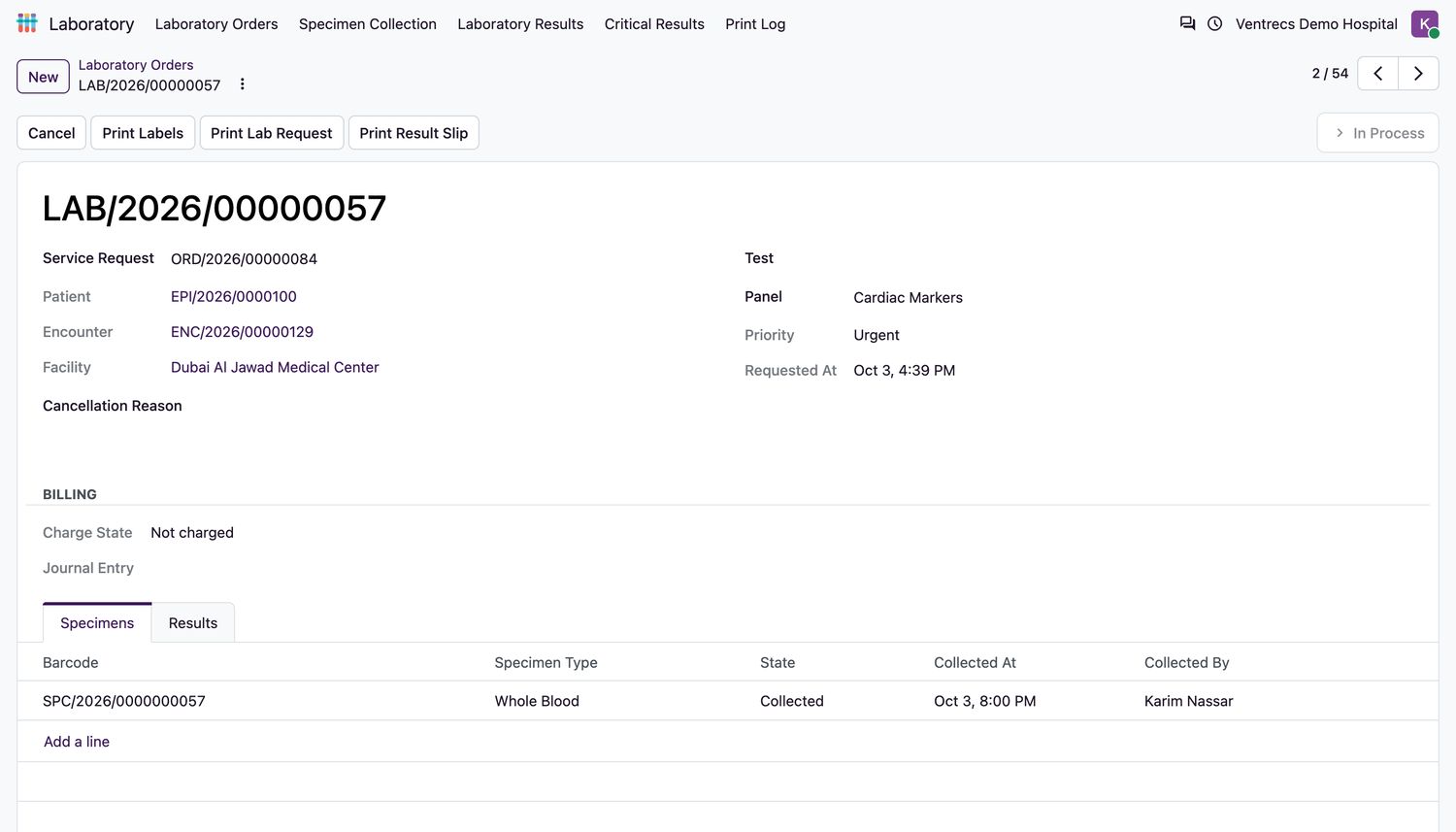
Orderedand one preliminary result line per test is created. - On the Specimens tab, add the specimen the test needs (Specimen Type). A specimen barcode is generated, and the specimen is
Expected.
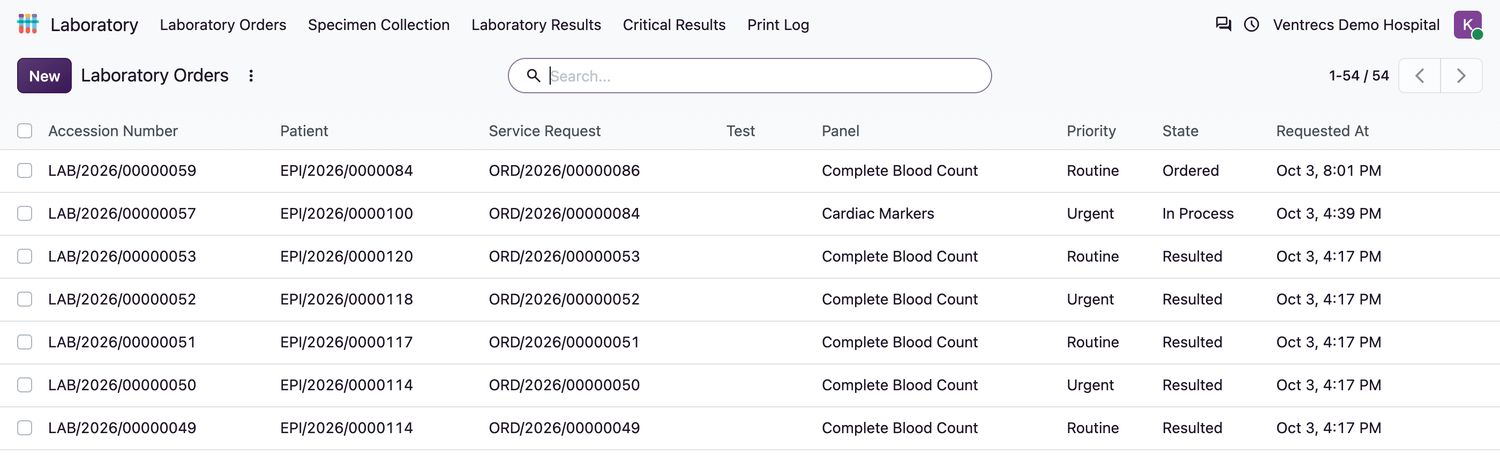
Order states
| Order state | Meaning | How it changes |
|---|---|---|
Ordered | Waiting for a specimen. | A specimen is collected. |
Collected | A specimen has been taken. | Mark Received in the laboratory. |
Received | The laboratory has the specimen. | Start Processing. |
In Process | Results are being entered. | The last preliminary result is verified. |
Resulted | Every result is final. | None. The order is complete. |
Cancelled | Cancelled with a reason. | None. |
Good to know
- To cancel an order, enter the Cancellation Reason first and select Cancel. Its preliminary results are cancelled too.
- Use Print Labels, Print Lab Request, Print Result Slip and Print Result Report to print from the order. See Print labels and patient identification.
- Add Missing Result Lines adds any result line that was not generated.
- A test must be configured for the facility and, when the country pack is approved, approved for production.
Related topics
Was this helpful?
Thank you. Your feedback is recorded.Thank you. Tell us what is missing so we can fix this guide.
Report an issue with this guide