
Use the patient timeline
Available to
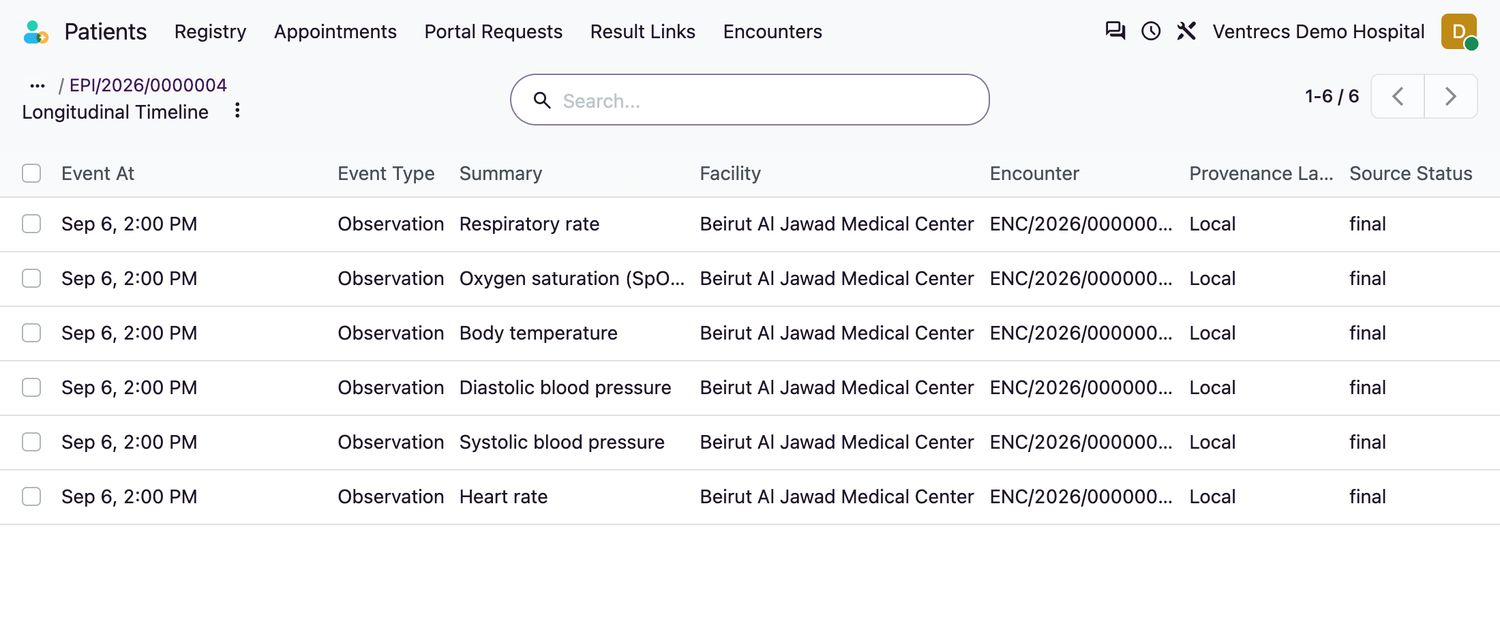
Authorised clinical users.The timeline is the patient's chronological story: every note, diagnosis, allergy, observation, order, laboratory result, imaging study, medication, document and procedure, newest first. It is built automatically from the other records, so it is always up to date.
Open the timeline
- Open the patient from Patients → Registry → Patient Registry.
- Select Timeline at the top of the record.
- Scroll through the events. Each line shows when it happened, its type, a one-line summary, the facility and the encounter.
- Use the search and filters to narrow by type, for example Laboratory or Clinical Note.
- Open an event to see the record it came from.
Good to know
- Events cannot be edited or deleted. They are generated evidence. To correct the underlying record, amend it; the timeline shows the change.
- The provenance label matters.
Localwas authored in this system;External or HIEcame from outside;Migratedwas loaded from a previous system. - Sensitive patients keep their sensitivity on every event, so the same access rules apply.
Related topics
Was this helpful?
Thank you. Your feedback is recorded.Thank you. Tell us what is missing so we can fix this guide.
Report an issue with this guide