
Manage controlled configuration and feature flags
Available to
Configuration managers.Some settings that change clinical behaviour are controlled: they need a review and an approval, and can be rolled back. Feature flags switch a capability on or off for a facility or role.
Change controlled configuration
- Open HIS Administration → Controlled Configuration and select New.
- Enter the Name, Key, Version and Configuration Type, the Facility if it is facility-specific, Effective From and the Payload Json. The payload must be valid JSON.
- Select Submit. The state becomes
Pending Approval. - A configuration manager reviews it and selects Approve. Only a configuration manager can approve.
- If a change causes a problem, open the approved configuration and select Roll Back. The previous superseded version is restored.
Configuration states
| State | Meaning |
|---|---|
Draft | Being written. |
Pending Approval | Submitted for approval. |
Approved | In force. |
Superseded | Replaced by a newer approved version. |
Rolled Back | Withdrawn. |
Set a feature flag
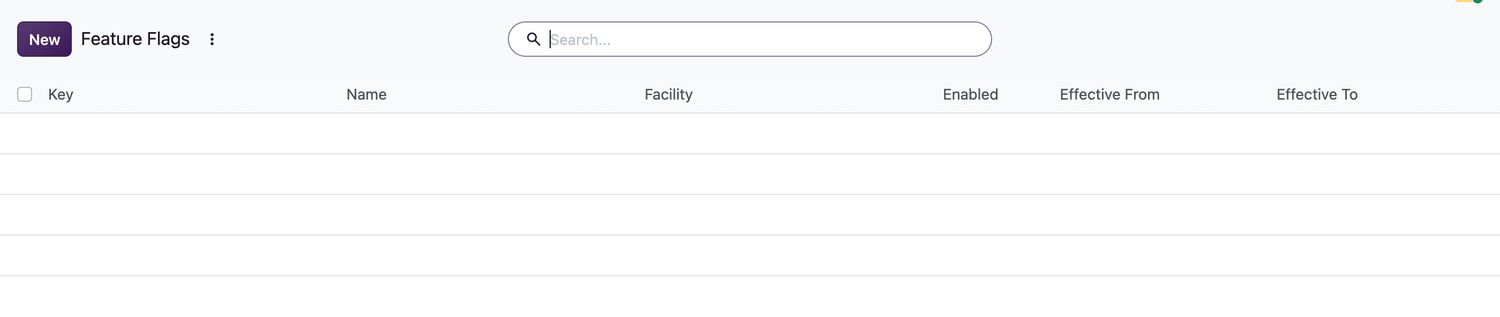
- Open HIS Administration → Feature Flags and select New.
- Enter the Name and Key, choose the Facility if it is facility-specific, and set Enabled. Choose Enabled For Groups to limit it to roles.
- Enter Effective From and, if temporary, Effective To.
- Enter the Change Reason. It is required. Save.
Related topics
Was this helpful?
Thank you. Your feedback is recorded.Thank you. Tell us what is missing so we can fix this guide.
Report an issue with this guide