
Record and verify patient coverage
Available to
Registration officers and billing officers.A coverage links a patient to an insurance plan. When a service is charged, the plan decides how much the patient pays and how much goes to the payer.
Add a coverage
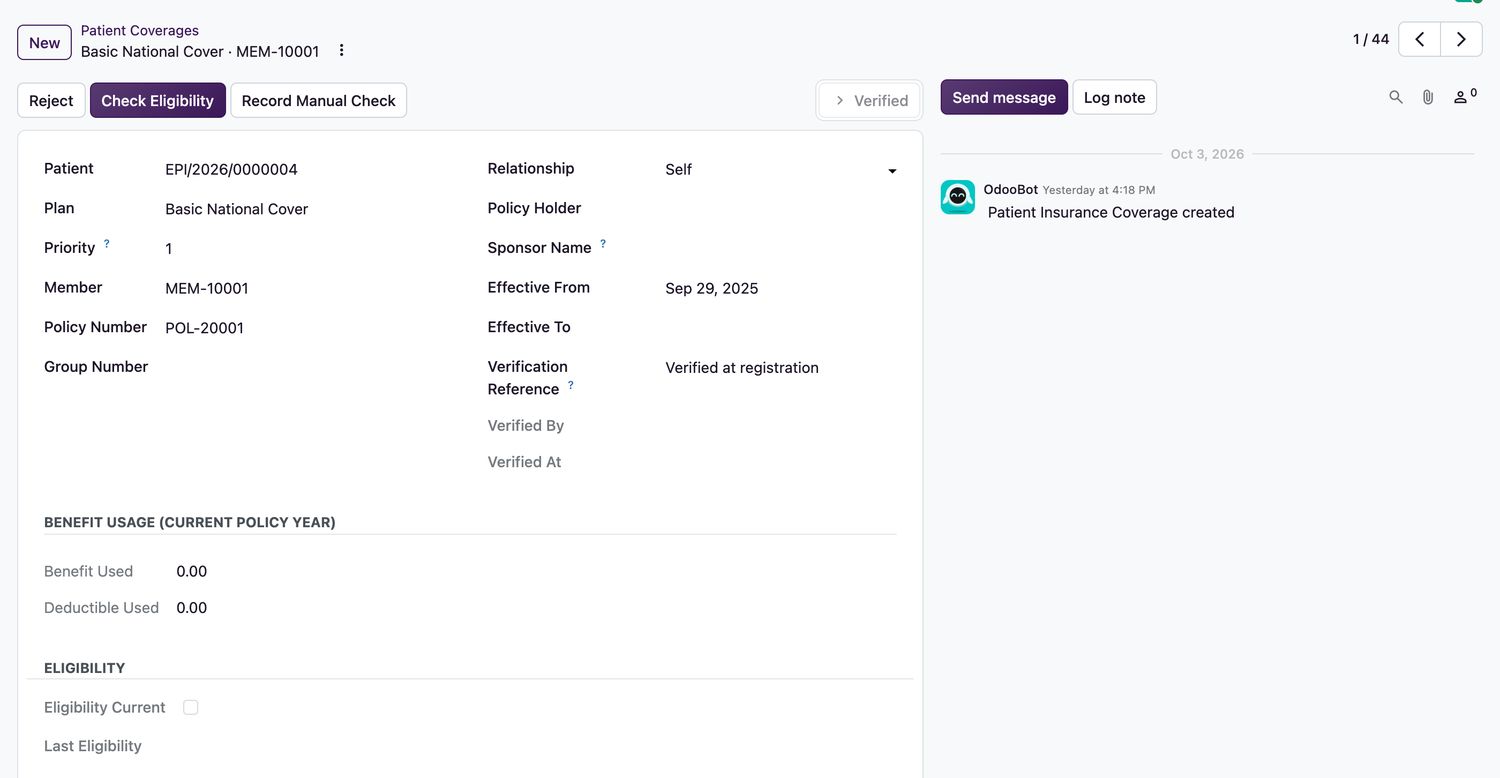
- Open the patient record and select the Insurance tab, or open Insurance → Patient Coverages and select New.
- Choose the Patient and the Plan. Enter the Priority (1 for the main coverage), the Member number, Policy Number and Group Number.
- Choose the patient's Relationship to the policy holder. If the patient is a dependant, enter the Policy Holder. Add the Sponsor Name for corporate cover.
- Enter Effective From and, if known, Effective To.
- Select Check Eligibility to ask the payer online, or Record Manual Check after phoning or using the payer's portal. See Check eligibility with the payer.
- Enter the Verification Reference (the portal, call or interface reference) and select Verify. Select Reject if the coverage is not valid.
Coverage states
| State | Meaning |
|---|---|
Unverified | Entered but not confirmed. Not used for charging. |
Verified | Confirmed by billing or registration staff. |
Rejected | Not valid. |
Expired | Past its end date. |
Rules
- Only billing or registration staff can verify a coverage, and only an unverified coverage can be verified.
- A patient cannot have two coverages with the same priority for overlapping periods.
- The Benefit Usage section shows the benefit and deductible used in the current policy year.
Related topics
Was this helpful?
Thank you. Your feedback is recorded.Thank you. Tell us what is missing so we can fix this guide.
Report an issue with this guide