
Write and sign an imaging report
Available to
Radiology users.A report is written against the study of an imaging order. It starts as a draft and becomes final when an authorised radiology user signs it.
Write a report
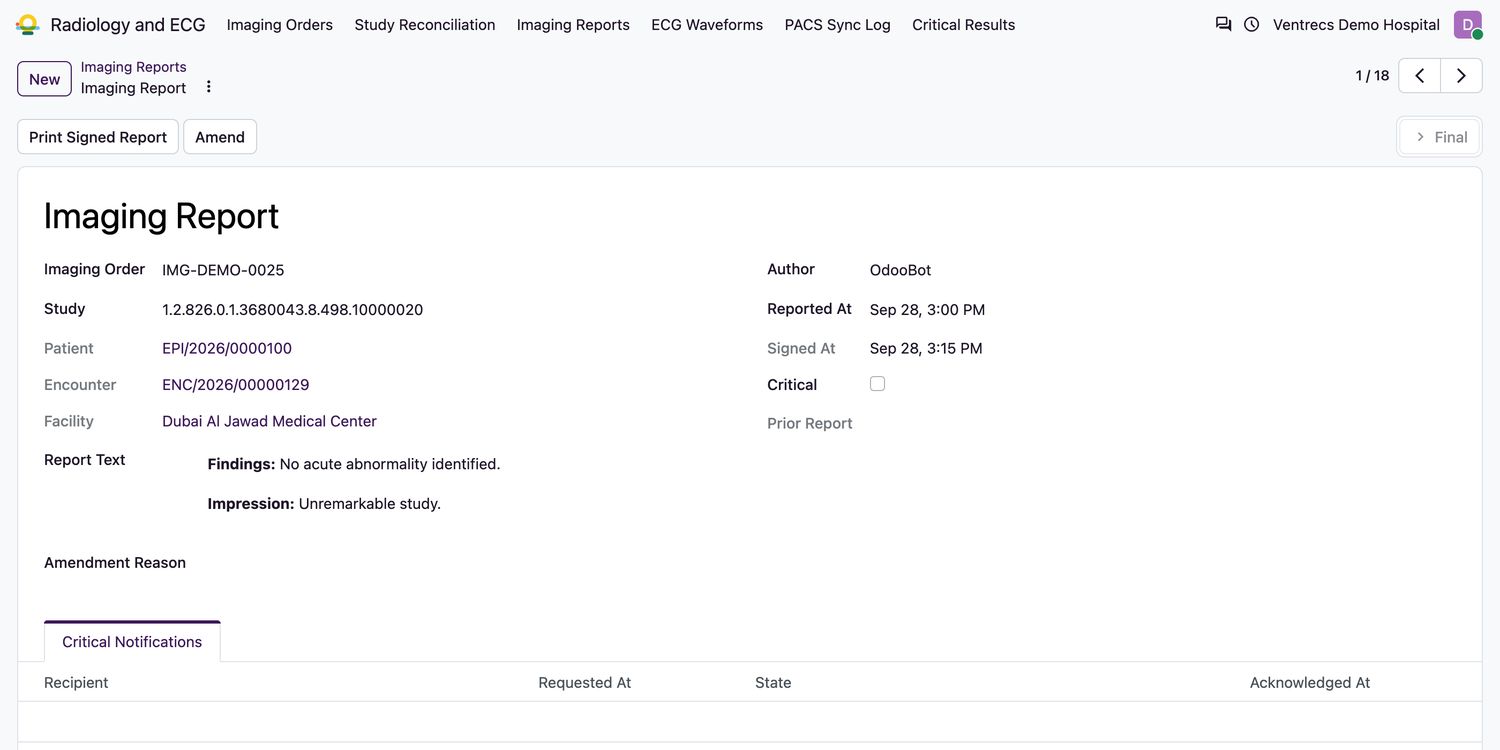
- Open Radiology and ECG → Imaging Reports and select New, or open the order and use its Reports tab.
- Choose the Imaging Order and the Study. Enter the Title.
- Write the Report Text: findings and impression. Report text is required before signing.
- Tick Critical if the finding needs urgent action. When you sign, a notification is created for the ordering clinician.
- Select Final Sign. The report is signed with your name and time, added to the patient's timeline, and an acquired order becomes
Reported. - Select Print Signed Report to print a copy.
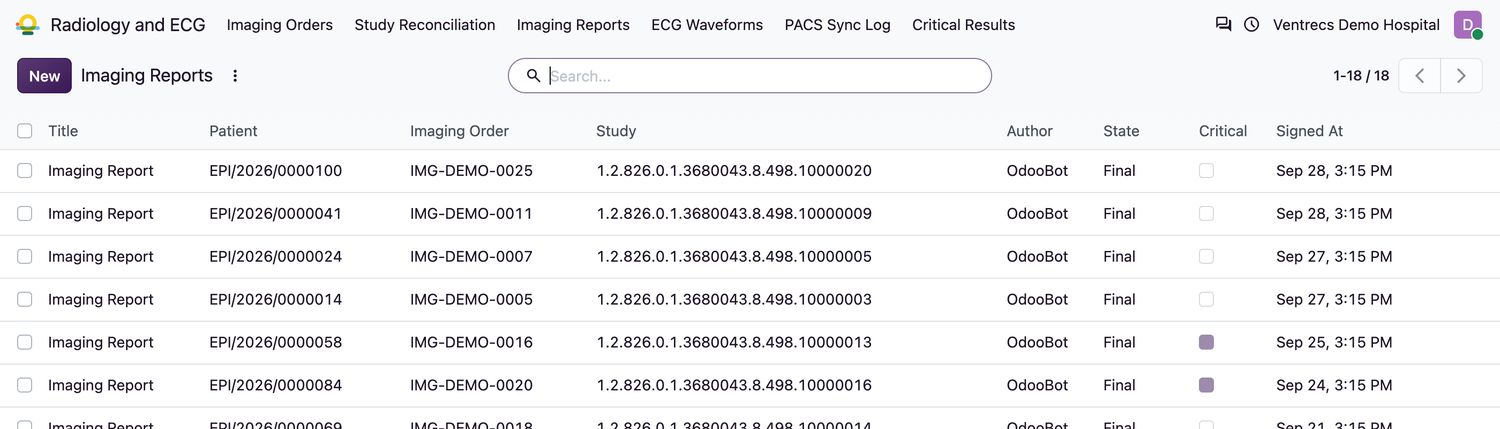
Report states
| Report state | Meaning |
|---|---|
Preliminary | Being written; not yet signed. |
Final | Signed by an authorised radiology user. |
Amended | Replaced by a later version. |
Entered in Error | Withdrawn as an error. |
Amend a report
To change a signed report, open it and select Amend. Enter the Amendment Reason; a new version opens for editing and the earlier signed version is kept.
Related topics
Was this helpful?
Thank you. Your feedback is recorded.Thank you. Tell us what is missing so we can fix this guide.
Report an issue with this guide