
Use the operations dashboard
Available to
Managers and department leads.The Hospital Operations dashboard shows the state of the hospital right now, on one screen, and points to what needs attention first.
Read the dashboard
- Open Reporting and select Dashboard.
- Use the facility selector at the top to show All facilities or a single facility.
- Read the cards. Select the arrow on a card to open the screen behind it.
- Select View Alerts to jump to the items that need attention, and Refresh to reload the figures.
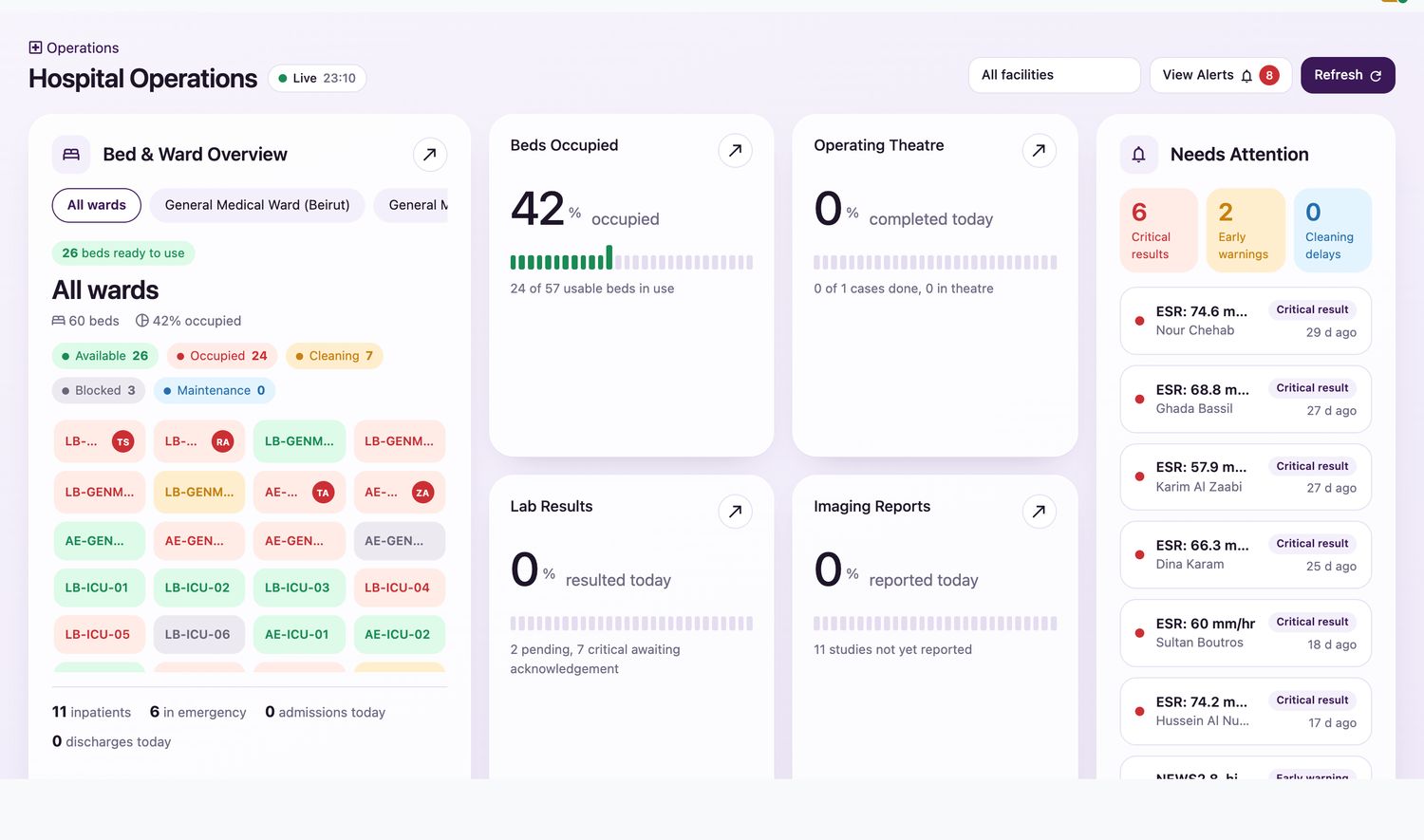
The cards
| Card | What it shows |
|---|---|
| Bed & Ward Overview | Every ward and bed, grouped by state: available, occupied, cleaning, blocked and maintenance. Select a ward chip to filter. The footer gives the inpatients, emergency patients, admissions today and discharges today. |
| Beds Occupied | The percentage of usable beds that are in use. |
| Operating Theatre | How many of today's cases are complete, and how many are in theatre. |
| Lab Results | The share of laboratory orders resulted today, with the number pending and the number of critical results waiting for acknowledgement. |
| Imaging Reports | The share of studies reported today, and how many are not yet reported. |
| Needs Attention | Critical results, early-warning scores and cleaning delays, each listed with the patient and how long ago it happened. |
Related topics
Was this helpful?
Thank you. Your feedback is recorded.Thank you. Tell us what is missing so we can fix this guide.
Report an issue with this guide